
APA Style Header Format: Step-by-Step Student vs. Professional Guide (APA 7th Edition)
Formatting the page header in an APA research paper is one of the most common sources of formatting deductions. In the 7th Edition, the American Psychological Association completely overhauled header rules, splitting requirements between student papers and professional manuscripts. Below is the definitive, step-by-step guide.
Quick Answer: What Is the APA Style Header Format in 7th Edition?
Under APA 7th Edition, header rules depend on whether you are writing a Student Paper or a Professional Paper:
- Student Papers (Undergraduate & Graduate Coursework): The header contains ONLY the page number flush right in the top margin. No running head or title is required unless specifically requested by your professor.
- Professional Papers (Journal Submissions): The header contains the Running Head in ALL CAPS flush left (maximum 50 characters including spaces) and the page number flush right. The words “Running head:” are no longer used!
Font Rule: The header must match the font and size of your paper body (e.g., 12 pt Times New Roman or 11 pt Calibri).
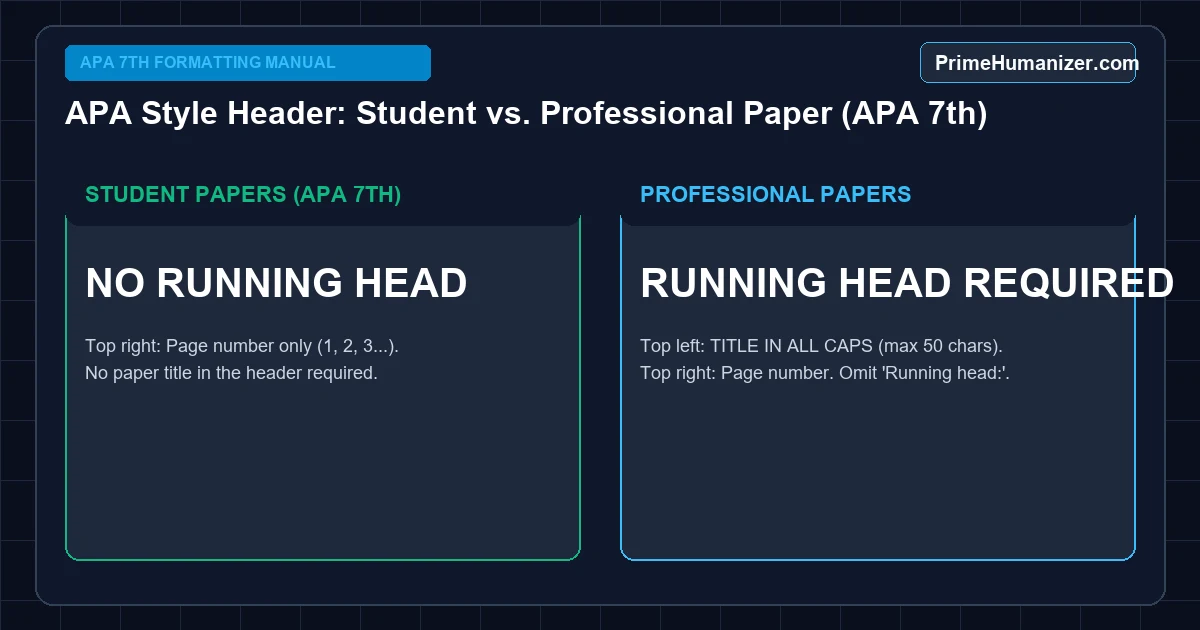
Figure 1: Clear comparison between APA 7th Edition Student and Professional paper headers.
Student vs. Professional APA Header Comparison
| Header Element | Student Paper (APA 7th) | Professional Paper (APA 7th) |
|---|---|---|
| Page Number Position | Top right margin (Flush right) | Top right margin (Flush right) |
| Running Head (Title) | NONE (Omit completely) | YES (Flush left, ALL CAPS, ≤50 chars) |
| The Words “Running head:” | Omit | ABOLISHED in 7th Edition (Do not write) |
| Title Page Header | Page number 1 only | TITLE IN ALL CAPS + Page number 1 |
How to Set Up an APA Header in Microsoft Word and Google Docs
In Microsoft Word:
- Double-click the top margin of your document to open the Header & Footer tab.
- Click Page Number → Top of Page → Plain Number 3 (flush right).
- If formatting a professional paper, click on the left side of the header and type your shortened title in ALL CAPITAL LETTERS. Press
Tabtwice to align the page number flush right.
In Google Docs:
- Go to Insert → Headers & footers → Header.
- Click Options → Page numbers → choose Position: Header, Start at: 1.
- If professional, type the title in uppercase and align left, then tab the page number right.
For title capitalization guidelines on your cover page, consult our guide on APA Title Capitalization Rules and Is ‘With’ Capitalized in a Title?.
Frequently Asked Questions
Do student papers need a running head in APA 7th?
No. Section 2.18 of the APA 7th Edition manual states that student papers do not require a running head unless the instructor or department explicitly mandates it.
What happened to the words “Running head:” on the title page?
In APA 6th Edition, writers had to type “Running head: TITLE” on the cover page and “TITLE” on subsequent pages. APA 7th completely abolished this distinction. In professional papers, you simply type the title in capital letters on all pages.